Resume / CV Builder
Create ATS-friendly resumes with templates
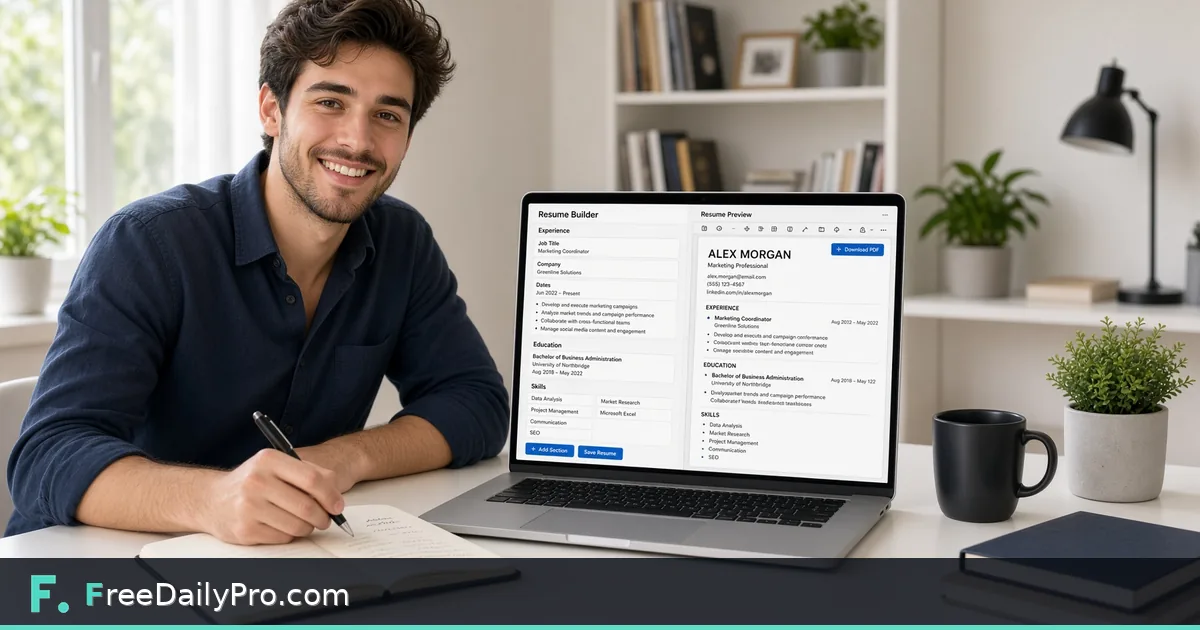
Section by section, to an ATS-friendly resume — not a rigid template fight.
Enter your full name.
Experience
Education *
Degree is required.
School is required.
Template
Fill in the highlighted fields above to enable preview and download.
About Resume / CV Builder
Create ATS-friendly resumes with templates
Watch: Resume / CV Builder in Action
- What does "ATS-friendly" actually mean here?
- Many companies run resumes through Applicant Tracking Systems that parse the text before a human ever sees it. Complex layouts (multi-column designs, text inside images, decorative graphics) often parse incorrectly or get skipped entirely. This tool's output avoids those specifically so your content reaches a human reviewer intact.
- Can I save my progress and come back later?
- Not currently — everything is held in your browser for the session, nothing is saved server-side. Finish in one sitting, or keep your content drafted elsewhere and paste it in when you're ready to generate the final PDF.
- Is this good for creative fields where a more visual resume is expected?
- Not really its strength — if you're in a field (design, for example) where a highly visual resume is the norm and ATS parsing matters less, a dedicated design tool will serve you better. This tool is built specifically for the common case where ATS compatibility matters more than visual flair.
How to use Resume / CV Builder
Start with Full Name, which is required, and a Contact Line such as email, phone, city and a profile link. A Summary is optional. Under Experience, enter Role, Company and Dates for each job, then write the bullet points in the box, one per line; Add Experience creates another entry. Under Education, at least one entry with a Degree and a School is required. Type Skills as a comma-separated line.
Choose a Template: Classic has a centered header with gray divider lines, Modern is left-aligned with a teal accent, and Minimal is compact with no dividers. Press Preview to check the layout. Select US Letter or A4 for the PDF, then press Download PDF or Download Word (.docx). The file name is built from your name and the template.
When to use it
It fits a student or early-career applicant who needs a tidy one-column resume quickly, a person refreshing an old document, or anyone who wants a PDF to upload and a Word file to edit further. A single column of plain text is also easier for screening software to read than an elaborate layout.
When not to use it
Skip it if you need a photo, columns, charts, skill-rating bars or extra sections such as publications or certifications under their own heading, because the layout has a fixed set of sections. For a creative portfolio or an academic CV that runs many pages, a word processor gives you control this builder does not.
Tips for best results
Begin each bullet with an action and end it with a result, one idea per line, because every line becomes its own bullet. Minimal uses slightly smaller type and tighter spacing, so it fits the most onto a page. Pick the Word file when you want to reword for each job, and the PDF when the layout must not shift. This page does not save your entries.
Limitations
Only four sections are produced: Summary, Experience, Education and Skills. The skills line is printed as typed, not as a styled list. The Paper menu is read only when the PDF is built. Dates and years are plain text with no checking, and a long resume simply continues onto further pages. Refreshing or closing the tab clears the form.
Privacy
Your name, contact line and work history are assembled into the Word or PDF file inside your browser. They are not uploaded and are not kept after you leave the page. If your text includes accented letters or non-Latin scripts, a font file may be fetched from this site to draw them. Only a usage count naming the tool is reported when you download.
How to use this app
- Fill in your contact info, then add sections for experience, education, and skills.
- Reorder sections to match how you want your resume prioritized.
- Preview updates live as you type, so you can see the finished layout before downloading.
- Download as a PDF formatted to parse cleanly through applicant tracking systems (ATS).
Tips
- ATS-friendly means avoiding complex multi-column layouts, text boxes, and graphics that many tracking systems fail to parse correctly — this tool's output is deliberately plain for that reason, not because it couldn't do fancier layouts.
- List experience in reverse-chronological order (most recent first) — it's both the ATS-friendly convention and what most human reviewers expect.
- Keep bullet points under each role focused on outcomes, not just duties — a resume section is one of the few places on the site where content quality matters as much as the tool's formatting.