Universal File Converter
Drop an image, PDF, Excel/CSV, Word, PowerPoint, HTML or text file and see every real format it can become
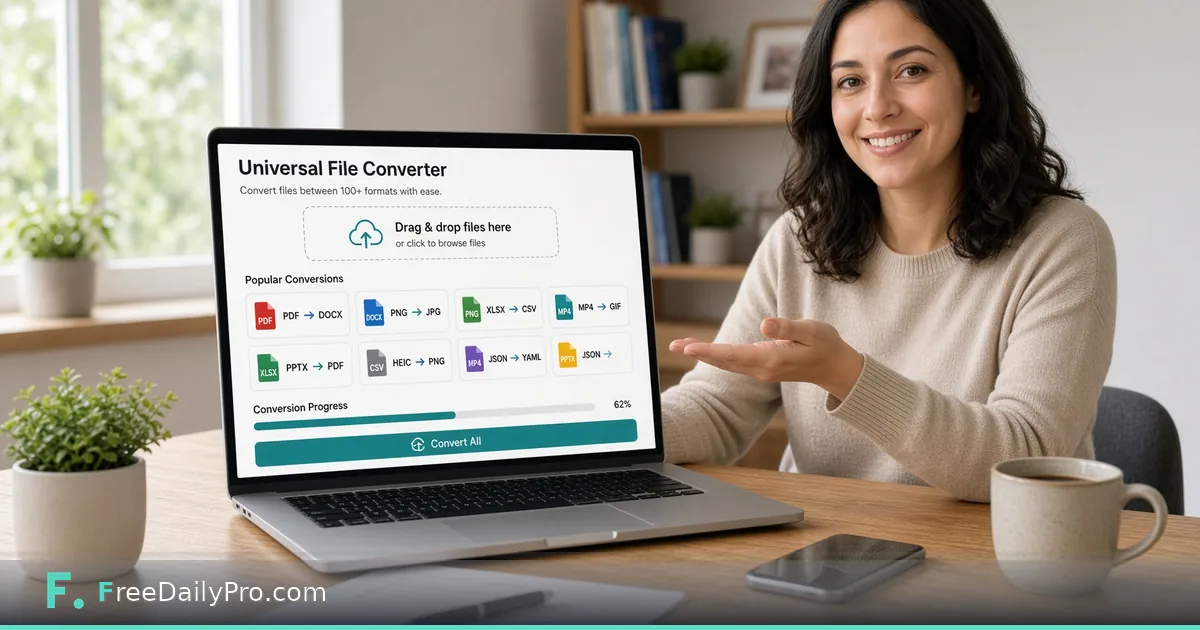
Drop a file. See every real format it can become.
Prefer to pick the formats yourself? Choose them here — or skip this and just drop your file below; we'll detect it and show every valid target automatically.
Drop a file to see what it can become
or click to browseor tap to choose
Images, PDF, Excel/CSV, Word, PowerPoint, HTML, Markdown, text. Not video, audio or SVG.
Large files (over 50 MB) may take longer or run out of browser memory
About Universal File Converter
Drops in an image, PDF, Excel/CSV, Word, PowerPoint, HTML, Markdown or text file (not video, audio or SVG) and shows only the formats it can genuinely become — a PDF shows Word/Excel/JPG/etc. as real options, an image shows PDF/resize/crop/other-image-formats, and so on. Nothing is offered that isn't actually implemented for that specific file type.
Upload a file to see its real conversion targets, then pick one. Every step — the original upload, each edit (crop, resize, rotate, watermark, and more, depending on the file type), and the converted result — stays visible as its own separately downloadable stage, so nothing gets overwritten as you keep working. Continue editing or converting from any stage, not just the most recent one.
For Excel to JSON, the first row of the sheet is used as the field names, so remove any title row above your column headings first. If you're not sure this is the right tool for a specific, repeated task — always converting PDFs to Word, say — the dedicated single-purpose tool for that exact conversion (PDF to Word, in this example) loads faster and skips the extra "what do you want to convert to" step, since it already knows. This tool is built for when you're not sure what you need yet, or need to chain several different operations on the same file in one place.
Watch: Universal File Converter in Action
- Why doesn't this support every conversion I can think of?
- Each conversion here reuses a real, already-working implementation from that format's own dedicated tool — this is a router over proven logic, not a second, separate conversion engine. Expanding coverage means building a genuine new conversion first, the same standard as everything else on the site, so what's offered is always something that actually works, not a placeholder.
- Is this different from using the individual PDF/image/Excel tools directly?
- Not in what it does — same underlying conversion, same quality of result. What's different is not needing to know in advance which specific tool handles your file; drop it here and see what's actually possible.
- Are my files uploaded to a server?
- No — every conversion runs entirely in your browser, the same privacy model as every other tool on the site. Nothing is uploaded anywhere.
How to use Universal File Converter
Choose One file or Multiple files. In one-file mode you can pick Convert from and Convert to first, or simply drop a file and let the page detect its type and list the targets it can produce. Press a target button such as PDF or Word. The result appears as a new stage under the original, each with its own Download button, and the next conversion or edit works on the latest stage.
For images and PDFs an edit panel offers Resize, Crop, Rotate 90 degrees and, for PDFs, Watermark, Page numbers, Compress, Password protect and Merge. Each edit shows a preview with Apply to keep it or Deny to discard it. Multiple files mode takes up to 20 files and offers Convert all to, a zip download and PDF merging.
When to use it
Reach for it when you have a file in one format and do not yet know the best route, or when you want to chain steps on the same file: crop a photo, turn it into a PDF, then compress or password-protect that PDF. It also suits a pile of mixed files headed for one format, such as phone HEIC photos and a few screenshots going into a single PDF.
When not to use it
Choose a dedicated tool when one job needs fine control, such as OCR in a language other than English or a Word conversion that keeps the original layout. Here PDF to Word carries plain text only, so columns, tables and pictures are lost. SVG, video, audio, GIF and TIFF files are not accepted, and a scanned PDF has no OCR route to Excel.
Tips for best results
For Excel to CSV, JSON or Word, only the first visible sheet is read and hidden rows and columns are left out, so move the sheet you need to the front first. In JSON the first row becomes the field names. Text (OCR) from an image works best on an upright, sharp photo. Try PDF compression at Light before Strong; if no saving is possible the tool says so and keeps your original.
Limitations
Conversions are practical rather than pixel-perfect. PDF to Word and PDF to HTML use extracted plain text, so layout and images are not kept; PDF to Excel picks up only detected tables and says so when it finds none. A Word file must really be .docx even though .doc is accepted by name. PowerPoint slides are rendered as pictures when they go into a PDF, so slide text will not be selectable there.
Privacy
The conversion code runs in your browser tab, so the files you drop are not uploaded for converting. Two things load extra resources: Text (OCR) downloads its English language data the first time it runs, which needs an internet connection, and PDF output containing text can load a font file from this site. Your document contents are not sent. Results stay in memory until you download them.
How to use this app
- Drop a file — an image (JPG, PNG, WebP), a PDF, a text file, a spreadsheet, or a PowerPoint presentation.
- The tool detects what you uploaded and shows only the output formats that genuinely work for that file type — never a dead-end option.
- Pick a target format. Each one runs the exact same conversion logic as that format's own dedicated tool elsewhere on the site.
- Download the result, or hit "Start over" to convert a different file.
Tips
- This tool deliberately supports fewer conversions than a full permutation of every format on the site — each one here is a real, working conversion reused from its own dedicated tool, not a new implementation. If a pairing you need isn't offered, the dedicated tool for that specific conversion may still exist elsewhere on the site even if it's not listed here yet.
- PDF to Excel only works when the PDF actually contains table-shaped data — a PDF that's just prose won't have anything to extract.
- Image to Text uses on-device OCR (the same engine as the standalone OCR tool) — works best on clear, high-contrast text, not stylized fonts or low-resolution photos.
More from Converters & Calculators: