One Converter for (Almost) Any File Format: What It Actually Handles
Use FreeDailyPro Universal File Converter for real format pairs (~30 conversions). Honest scope, MultiTool Apps context.
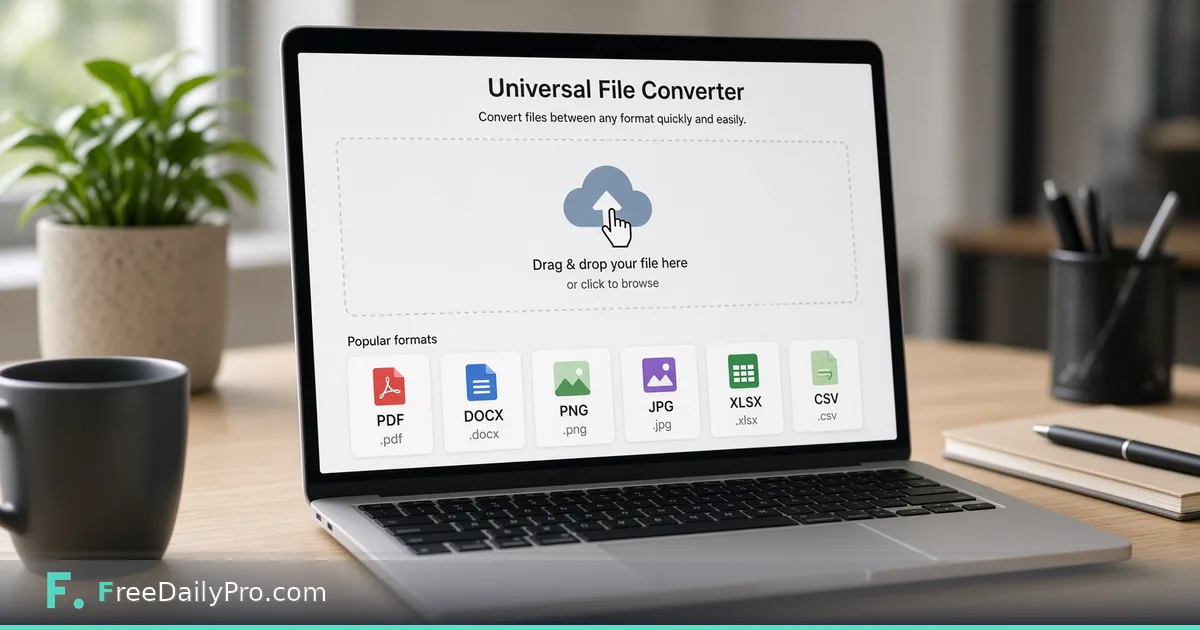
You have a file and a vague plan: "make this a PDF, then make it smaller, then email it." A pile of single-purpose converters means opening a new page for every hop. Universal File Converter is built for that situation. Drop in an image, PDF, Excel or CSV file, Word document, PowerPoint, HTML, or text file, and it lists the formats that file can really become. It is one of the multi-tool apps, described on the premium apps page.
Scope, stated plainly
Expect a practical matrix of roughly thirty conversions, not every format to every other format. Video, audio, SVG, GIF, and TIFF files are not accepted. The page detects the type you dropped and shows only the targets that exist for it, which is the useful part: you stop guessing.
How a session goes
Choose One file or Multiple files. In one-file mode you can pick the source and target first, or just drop the file and press a target button such as PDF or Word. Each result appears as a new stage under the original with its own Download button, and the next step works on the latest stage. For images and PDFs an edit panel offers resize, crop, and rotate, and PDFs add watermark, page numbers, compress, password protect, and merge. Each edit shows a preview, and you choose Apply or Deny.
Example: a field report to a board packet
You have eight phone photos in HEIC and JPG, plus a spreadsheet. Switch to Multiple files mode (up to 20 files), convert the photos to one PDF, and convert the spreadsheet to PDF as a readable table. Then merge them, add page numbers, and password protect the result. That chain would otherwise take four separate page visits. If you only need to join existing PDFs, Merge PDF is the focused option, and Convert Formats is the narrower choice for JPG, PNG, and WebP.
Where fidelity drops
- PDF to Word and PDF to HTML use extracted plain text, so columns, tables, and pictures are not kept. If layout matters, use PDF to Word and expect to reformat.
- PDF to Excel only picks up tables it can detect, and it says so when it finds none.
- Scanned PDFs are pictures of text; there is no recognition route to Excel.
- PowerPoint slides go into a PDF as images, so the text on them is not selectable.
- A Word file must truly be
.docx, even though a.docname is accepted.
Always open the output once before you send it.
When to pick a narrower tool
If the job is a single, well-defined step, the dedicated page is usually quicker and exposes more settings. Use Compress PDF when you must hit a specific size, and the universal page when you are chaining three or four steps on one file and want them in one place.
Privacy and limits
Conversion happens in your browser, which suits internal documents better than a service that keeps projects in an account. Nothing here is offered as archival-grade: it does not produce PDF/A, and it does not turn a PDF into an editable PowerPoint. For a conversion that needs OCR in another language or a layout-faithful Word file, use a dedicated desktop program.