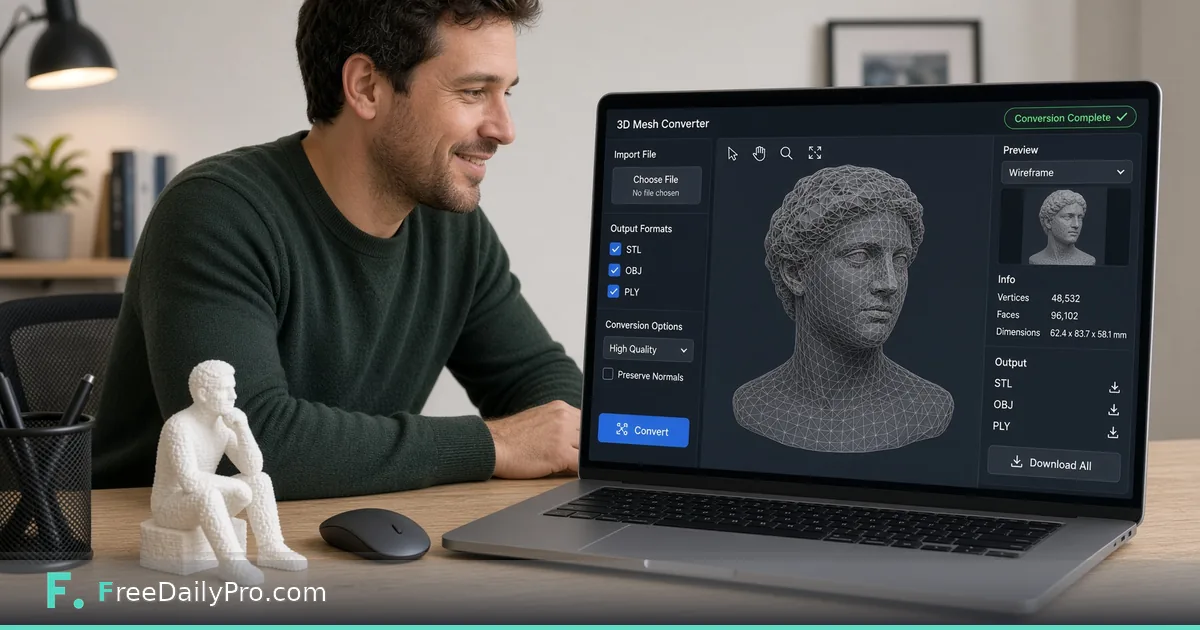
Converting 3D Print Files Between STL, OBJ, and PLY
Convert STL, OBJ, PLY, and GLB with FreeDailyPro 3D Mesh Converter. For makers and print prep workflows.
Your slicer rejects the OBJ you exported. A web viewer wants GLB. A scan from a phone app arrives as a PLY with a million triangles. 3D Mesh Converter reads STL, OBJ, PLY, GLB, and 3MF and writes seven outputs: binary or ASCII STL, OBJ, binary or ASCII PLY, GLB, and 3MF. Everything runs in the page, so the model is not uploaded.

Choose the output by destination
- Printing: binary STL is the common safe choice, and 3MF works if your slicer prefers it. Binary files are much smaller than ASCII ones for the same model.
- Web or game preview: GLB is compact and loads in modern viewers.
- Reading or scripting: ASCII STL or ASCII PLY lets you open the file in a text editor and inspect vertices.
- Scanner data and research: PLY is what many scanning tools produce.
Set the units before you press Convert
STL, OBJ, and PLY carry no unit at all, so a cube that is 20 in your modeler could mean 20 mm or 20 inches. The Model units setting (millimeters, centimeters, meters, or inches) matters most for GLB and 3MF, because GLB is rescaled to meters and 3MF to millimeters. A wrong choice shows up as a model that is 25.4 times too big or too small.
Read the report
After conversion you see vertex and triangle counts, the bounding box, and whether the mesh is watertight. With units set to millimeters you can also enter your print bed size and see whether the part fits. A mesh reported as not watertight has holes or open edges, and many slicers will complain or print gaps. The converter tells you this; it does not repair it. Fix those in a modeling program such as Blender.
Thin a heavy scan
The Reduce triangles slider runs from 100 percent down to 5 percent in steps of 5. A worked example: a 1.2 million triangle scan of a statuette is slow to slice. Keep 25 percent, and you get roughly 300,000 triangles. Compare the counts in the note under the report, then look at the result in 3D Mesh Viewer. Fine engraving may soften, so try 50 percent first if detail matters.
A sensible print-prep sequence
- Export from your modeler in the format it does best.
- Convert, with the right units chosen.
- Check the watertight line and the bounding box against your printer bed.
- If you only need to switch encoding of an STL, STL ASCII / Binary Converter does that single job.
- Slice, then print a small test piece before committing hours of filament.
What gets lost
Only triangle positions survive. Colors, textures, materials, UV maps, animations, and scene hierarchy are dropped, and everything in a GLB or 3MF is merged into a single object. GLB input must be a self-contained .glb; separate .gltf files are not accepted, and Draco-compressed files may fail. CAD formats such as STEP or IGES need a CAD package.