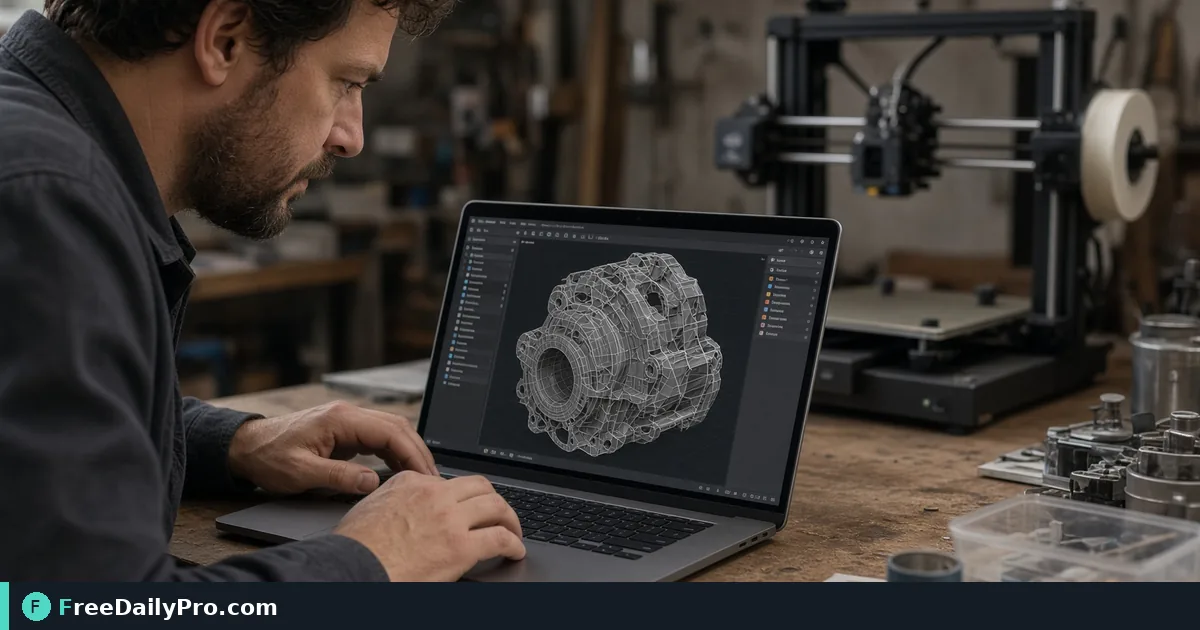
Check a 3D Mesh in the Browser Before You Commit Filament
Preview STL and OBJ meshes in-browser before 3D printing. Catch scale, normals, and hole issues early.
Filament, machine time, and patience all vanish when a model that "looked fine" in a thumbnail is actually 0.1 mm tall or inverted. A quick browser preview with Mesh 3D Viewer catches obvious problems before you open a heavyweight slicer session.

Why a pre-slice mesh check pays off
Marketplaces and classmates send STLs that were exported from different unit systems. CAD in inches, printer in millimeters, and suddenly a phone stand is the size of a coin—or a room. Other files have holes, non-manifold edges, or normals flipped so the slicer walls the inside. You do not need a full CAD suite to see those disasters early.
Say you run a small club printer on a shared laptop that should not install random vendor tools. You need to open student uploads, spin them, check scale against a known object, and only then queue a slice on the machine PC. That is the scenario.
What to have ready
- The mesh file (commonly STL or OBJ) from a trusted source path.
- Intended real-world size (e.g., "bracket should be 80 mm wide").
- Optional conversion first if the file type is awkward: Mesh 3D Converter or Universal File Converter.
- A place to note defects: missing wheel, thin wall, floating fragment.
Among 200+ professional tools, mesh-3d-viewer is the inspection step. Keep 10 trial usages a day in mind when a whole class uploads at once—review in batches.
Numbered workflow before you slice
- Confirm the file extension and size on disk. Multi-hundred-megabyte scans may need decimation elsewhere first.
- Open Mesh 3D Viewer and load the mesh using the live control labels.
- Orbit the model. Look for gaps, internal geometry bleeding through, and paper-thin regions.
- Compare scale. If the tool shows dimensions, match them to your intended millimeters. If a 20 mm bolt hole reads as 20 m of nonsense, fix units upstream.
- Check orientation. Flat bases should sit on the build-plate mental model; organic minis may need a intentional tilt later in the slicer, but "lying on its face by accident" is worth catching now.
- Export notes: "scale 0.1x?", "hole in base," "duplicate shell." Reject or repair before slicing.
- Only after the mesh looks sane, move to your slicer on the print PC.
Worked example: clip that printed like a speck
A classmate exports a cable clip from a tutorial that used meters as units. In the viewer the clip is a speck until you zoom aggressively; dimension readout (when available) or comparison to the grid shows it is orders of magnitude small. You send it back with "scale ×1000 in CAD or export in mm" instead of printing a dust grain for twenty minutes. Second file the same afternoon: a figurine with the skirt inverted into the torso. One orbit in Mesh 3D Viewer shows the cavity; you reject the upload before resin is wasted.
Edge cases
Multi-body STLs. Assemblies may appear as separate islands. Confirm whether the designer meant loose parts or a single manifold solid.
Very dense photogrammetry. Preview may lag. Simplify offline, then re-check.
Units metadata missing. STL often has no units—only coordinates. Human intent must supply mm vs inch.
Color OBJ/MTL. Viewer focus is shape; materials may not match your slicer paint tools. Do not assume texture equals printable color.
Mirrored parts. Left/right brackets can look correct until you compare to a photo of the real machine. Keep a reference image handy; Image to PDF can bag reference shots with the review note if you need a single packet for a teacher.
Common mistakes
- Trusting the marketplace render alone.
- Slicing immediately on the first STL in the Downloads folder without spinning it.
- Fixing scale only in the slicer every time instead of correcting the source export when the file will be shared again.
- Ignoring inverted normals until supports fail in weird ways.
- Reviewing on a tiny phone screen where holes disappear.
Honest limits
Mesh 3D Viewer is for inspection and orientation sanity. It is not a full repair CAD, not a slicer, and not a guarantee of mechanical fit. Always validate critical parts with calipers after a short test print when tolerance matters. FreeDailyPro runs these utilities in the browser with 10 trial usages a day on file flows—club sessions should queue files deliberately.
Converter tools help when the classroom standard is OBJ and the printer workflow wants STL. View first when possible so you know what you are converting.
FAQ for pre-print checks
Does a clean view mean the print will succeed? No. It means the mesh is plausible. Slicer settings, filament, and mechanical design still decide the outcome.
Can I measure precisely in the browser? Use whatever dimension readouts the live tool offers as a guide, then confirm critical sizes in CAD or after a gauge print.
What about 3MF? If the viewer accepts your format, great; if not, convert carefully and re-inspect because conversion can drop attributes.
Who should click reject? Whoever owns filament budget. Publish a one-line club rule: "no slice without a viewer pass."
Dimension sanity with a known object
Keep a physical caliper or a printed 20 mm cube on the bench. After the mesh looks right in the viewer, compare a critical hole or width to that known object in CAD notes. If the viewer shows an 80 mm bracket and your caliper sample is 8 mm, you still have a unit problem—even when the shape looks familiar on screen.
Club nights benefit from a shared reject log: filename, who uploaded, defect type (scale, hole, inverted, multi-body mess). Patterns show up fast—one tutorial file infects half the class. A one-line rule on the wall ("viewer pass before slice") saves more filament than another lecture about supports.
When two parts must mate, view both meshes in separate passes and write the intended gap. The browser viewer will not run a full boolean fit check, but it will stop you from printing a "left" bracket that is clearly mirrored wrong against a photo of the machine.
If the file opens slowly, note triangle density and ask for a decimated version before the print queue fills. Dense photogrammetry that crawls in preview will crawl in the slicer too.
Closing next step
Which mesh defect (scale, hole, inverted normals, or multi-body mess) keeps blocking your next print, and what file type are you loading? Tell FreeDailyPro on the contact page.