Convert Between Document and Image Formats in One App
Use Universal File Converter to turn PDFs, Office files, images and text into formats that actually work in the browser.
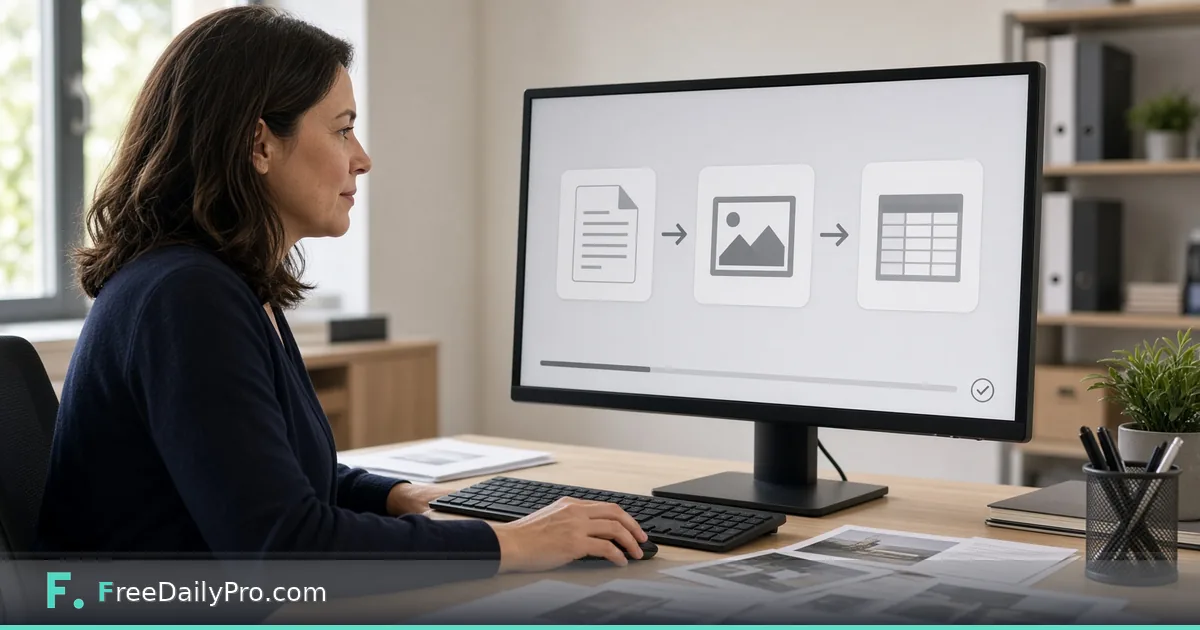
Marcus Hale is a freelance operations analyst in Columbus, Ohio. Client folders arrive as a mix of HEIC phone photos, scanned PDFs, Excel cost tables, and Word drafts. Opening a different single-purpose converter for each file used to burn half a morning. Universal File Converter is the Premium application that accepts one file (or a small batch), shows only formats that actually work, and keeps each step visible as its own stage in the browser.
This guide covers one job only: convert a realistic client packet in one Premium app without claiming video or audio routes the product does not offer.

What it converts (and what it does not)
Live product scope: images (JPG, PNG and WebP, plus HEIC/HEIF photos), PDF, Excel/CSV, Word, PowerPoint, HTML, Markdown and text. Not video, audio or SVG, and it does not take GIF or TIFF files either. That honesty is the product: the page only lists targets that really work.
Examples from the live tool:
- Image / HEIC → PDF, PNG, JPG, WebP, ICO, Base64 text, Text (OCR)
- PDF → JPG, Excel, Word, Text, HTML. PDF → Word and Text carry the text of the PDF, not its page layout.
- Excel → CSV, JSON, PDF, Word (table); CSV → Excel, JSON, PDF
- Word → PDF, Text, HTML; PowerPoint → PDF, JPG and other presentation formats
- Text / Markdown / HTML → PDF, HTML, Word or Markdown, depending on the file you drop
For whole mixed folders with saved recipes, pair this Premium app with the workflow product File Conversion Studio. For a handful of photos only, Convert Image stays a light Professional option. Dedicated PDF to Word remains available when that single lane is enough.
Browse PDF tools for siblings.
Worked example: Friday client packet
- Operator: Marcus Hale
- Files: three HEIC site photos, one PDF report, one Excel cost sheet
- Goals: photos → JPG for the portal; PDF → Word for edits; Excel → JSON for a script
- Success: each conversion is a stage with its own Download button; the originals stay in his own folder
Marcus names downloads by stage (site-01.jpg, report-v1.docx, costs.json) so the client portal never receives a file still titled IMG_4321.HEIC. He keeps the original HEIC and PDF in a separate archive folder so he can start again later without re-requesting files from the client.
Steps in Universal File Converter
- Open Universal File Converter and confirm Premium access (2 trial uses a day; after trial, $3 day pass or $9.99 a month as shown on the tool).
- Drop one file first. Read the target list, only real options appear.
- Pick the target and run the conversion. Use on-tool edits (crop, resize, rotate, watermark where offered for that type) on the current stage if needed.
- Download the stage you need. Stages stack: Original, then each conversion or edit, and you can continue from any stage. Once a converted stage exists the page stops offering a download of your untouched Original, so keep your own copy.
- For up to 20 files, switch to multi-file mode, set Convert all to or pick per-file targets, then download singles or a zip (or merge to one PDF when that option applies).
- For Excel → JSON, ensure the first row is field names (remove title rows above headers).
- For PDF → Excel, remember this path reads real text-layer tables, not OCR of a scan. A pure scan may report no tables found; use OCR routes first when needed.
- Close the tab when finished. Conversion runs in the browser and files are not uploaded (OCR language data may download once for Text OCR). The one exception is old presentation files (
.ppt,.odp,.key), which are converted to.pptxon our server first, so keep confidential decks as.pptx.
Premium vs one-off Professional tools
Universal File Converter is a Premium application: 2 trial uses a day, then a $3 day pass or $9.99 a month. File Conversion Studio is a workflow product ($29.99 a month, with a 7-day trial) for recipe-driven mixed folders. Do not mix those trial stories in client emails.
When Marcus only needs three JPGs from phone photos, he sometimes uses Convert Image on a Professional trial day to save Premium uses for the PDF→Word and Excel→JSON steps that matter more.
Stage discipline Marcus uses
He keeps the original files in an archive folder of his own, then works only on named stages (report-v1.docx). If a client asks for the photo as both JPG and PDF, he branches two stages from the same HEIC instead of re-uploading. Stage names double as a short audit trail when a client asks “which version did you send?” two weeks later.
Multi-file batch without chaos
When twenty files arrive, he groups by type first: images together, PDFs together. He runs Convert all to JPG for photos, then handles PDFs one by one so Word vs Excel choices stay intentional. A single zip of results goes to the client portal; the stage list stays on his machine.
He refuses to run Convert all on a mixed folder of photos and contracts in one click; wrong targets cost more time than sorting first.
HEIC reality check for client portals
Many portals still reject HEIC. Marcus converts to JPG (or PDF when a multi-page scan is required) and checks orientation after conversion. Phone photos taken upside-down stay wrong until he uses rotate on the image stage. He also trims borders when a client photographed a whiteboard through a doorway frame.
OCR text path when the PDF is a photo of a page
If the PDF is really a photo of a printed page, PDF→Word will not invent a clean text layer. The Text (OCR) target belongs to images, so Marcus turns the page into a JPG first (PDF→JPG), runs Text (OCR) on that image stage, pastes the result into a draft, and corrects proper names by hand. He never promises the client “perfect OCR” for faded thermal receipts.
Common mistakes
- Expecting MP4 or MP3 conversion here. Use the dedicated video/audio tools instead.
- Forcing PDF→Excel on a scanned brochure with no table structure.
- Leaving a title row above Excel headers before JSON export.
- Burning both Premium trial uses on throwaway tests of the same PDF.
- Treating any edit made inside the converter as redaction for secrets. Use Redact PDF for sensitive PDF text.
- Re-uploading the same HEIC three times instead of branching stages.
Limits and good to know
- Premium: 2 trial uses a day; $3 day pass or $9.99 a month (live tool page).
- Files stay on your device for conversion, except old
.ppt,.odpand.keypresentations, which pass through our server for a.pptxconversion. Not a document vault. - FreeDailyPro has 300+ professional tools, premium applications and workflow products beyond this app.
- Existing overview post universal-file-converter covers capability map; this post is the packet workflow angle.
- Multi-file mode is for small batches (up to about 20), not a 2,000-file server farm job.
Scenario: Monday morning three-file triage
- HEIC photo of a signed delivery note → JPG for the ticket system.
- PDF cost summary with a real text table → Excel for finance.
- Markdown status notes → PDF for the weekly archive.
Marcus finishes all three inside Universal File Converter before coffee cools. He does not open desktop Word or Excel until a human edit is required after conversion.
Scenario: JSON handoff for a script
The client wants costs as JSON. Marcus opens the Excel sheet, deletes the two marketing banner rows above the real headers, renames columns to snake_case, saves, then Excel→JSON. The script receives clean keys. He keeps the cleaned Excel as a stage so finance can still open a spreadsheet.
FAQ
Does Universal File Converter upload my files?
Conversion runs in the browser and files are not uploaded. OCR language data may download the first time Text OCR runs. Old .ppt, .odp and .key presentations are converted to .pptx on our server first.
Can it convert video or audio? No. Use the dedicated media tools. This app covers documents, images, Office, HTML, Markdown and text.
How is pricing different from Professional tools? This is Premium: 2 trial uses a day, then $3 day pass or $9.99 a month.
When should I use File Conversion Studio instead? When you repeat the same mixed-folder recipe every week and want a workflow desk rather than one-off packet work.
Will PDF→Word preserve every layout pixel? No. PDF→Word carries the text of the PDF into an editable document, not its page layout, tables or columns. Expect to rebuild the formatting.
What about password-protected PDFs? Unlock or remove the password first with the appropriate PDF tools, then convert. Universal File Converter is not a password cracker.
Closing next step
One packet should not require six bookmarks. Open Universal File Converter, convert one real client file end to end, and keep the stage downloads beside the original.
If you want a HEIC-to-portal checklist next, ask at https://www.freedailypro.com/contact.