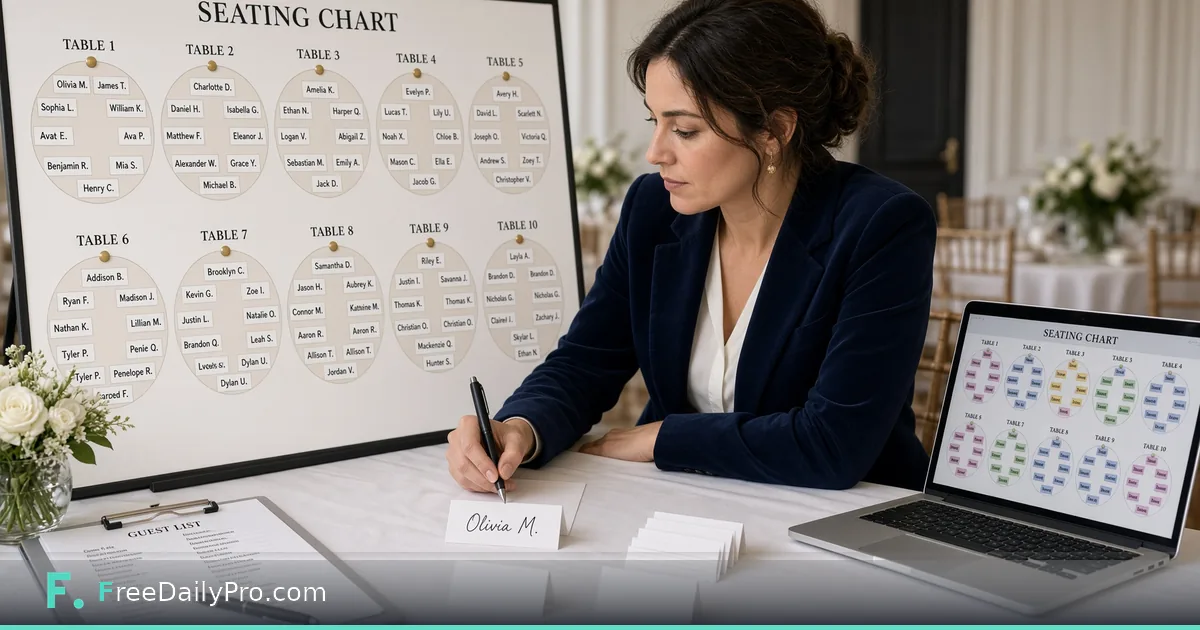
Assign Guests to Tables With a Seating Chart
Use Seating Chart Planner to seat guests at tables, catch overfull tables and export the seating plan.
Name cards are printed, the caterer needs counts per table, and someone still seated two feuding relatives beside each other. Seating Chart Planner seats guests at tables, can keep organisations together, flags tables that are over capacity, and lets you download the plan—without drawing a full floor map.
This guide covers one job only: set table capacity, seat guests, fix conflicts, export the plan for place cards and service. Maintain RSVPs in Guest List Tracker, timing in Event Day Schedule, and badges in Badge Pass Maker when that tool is in your project stack. Category: event tools.
Tables, not floor plans
This planner assigns who sits where by table, not the geometry of the ballroom. For booth and stand layouts use booth layout tools instead. Set tables and seats per table, press Seat everyone automatically, then adjust with the table menu beside each name. Overfull tables are outlined with a warning count; parties larger than a table are flagged. Guest data stays in the browser tab and is erased when you close it unless you save a project file.
Worked example: 10 tables of 8, charity dinner
A charity dinner has 76 confirmed guests. Ten tables of eight leave spare seats for sponsors. Access-need guests are seated first near exits. Automatic seating places the rest; the planner then moves two company teams onto shared tables manually. The downloaded plan feeds place-card printing and the waitstaff briefing.
Steps on Seating Chart Planner
- Open Seating Chart Planner.
- Load or enter the guest list.
- Set number of tables and seats per table.
- Seat access-need and VIP guests manually first.
- Run automatic seating for the remainder.
- Keep organisations together using the controls the page provides.
- Resolve overfull-table warnings.
- Check sensitive pairings the software cannot know (family, politics).
- Download the seating plan.
- Share with place-card team and head waiter; save the project file.
Common mistakes
- Treating auto-seat as aware of personal conflicts.
- Equal table sizes when the room needs a head table of twelve—handle by naming extras carefully and checking counts.
- Printing place cards before the final download.
- Ignoring accessibility seating until the day of.
- Uploading guest lists to random tools when this flow is designed to stay local to the browser.
Limits and good to know
All tables share the same seat count in the basic model; different sizes need careful naming and checks. It is not a CAD floor plan. Among FreeDailyPro’s 300+ professional tools, premium applications and workflow products it focuses on assignment. Where downloads count toward the daily allowance, expect 2 trial usages for seating chart planner, then a day pass or monthly options when you need more.
Edge cases
Kids’ tables: filter by tag if your list supports it, or seat manually. Late RSVPs: keep two spare seats unassigned until 48 hours out. Multi-room dinners: run separate plans per room.
Day-of briefing
Give waitstaff a one-page table list with dietary tags, not the full guest biography sheet.
Place cards and service counts
Export the seating plan only after the final adjustment pass. Feed table numbers into place-card mail merges and into catering counts per table when meals differ. Brief hosts on which tables need extra attention (sponsors, accessibility). Keep two spare seats unlabelled until the last RSVP window closes so you are not reprinting an entire card set for one late plus-one.
Coordination with catering and registration
Share the final table counts with catering so special meals land on the correct tables, not merely “somewhere in the room.” Registration staff should know which table number to write on a last-minute place card. If you use door lists, keep table numbers off the public badge when privacy matters, and keep them only on steward sheets. After the event, archive the seating PDF with the guest list version used that night so next year’s planner can see what worked.
Host table cards and last-minute swaps
Print a steward sheet with table number, guest count, and dietary tags only—no home addresses. When a guest requests a move, update the project, re-export, and reprint just that table’s cards if time allows. Document the reason for major moves so next year’s team does not recreate a conflict you already solved.
Dietary tags on the seating plan
Pull vegetarian, vegan, allergy and access flags from the guest list into the steward version of the plan even if place cards stay simple. Servers need table-level counts; guests need only their name and table number. When a table runs two special meals and six standard, the kitchen plate-up order changes. Export once for stewards and once for place cards if the tool’s download is a single list—filter in a spreadsheet rather than maintaining two conflicting seating masters.
Rehearsal dinner vs main event
If you seat a smaller rehearsal the night before, do not reuse the main-event file without a new project name. Mixing the two is a classic way to print the wrong cards. Archive each plan with the event date in the filename and a one-line note about who approved the final version.
Proof one table before the full print run
Pick the busiest table, usually the one with the most dietary tags, and print its place cards on the real card stock first. Check that the longest name fits on one line and that the table number is readable from arm's length. Only then print the remaining cards. A single wasted sheet is cheap; a reprinted set at five o'clock is not.
Next step
Good seating is logistics plus judgement—the tool handles the logistics. Open Seating Chart Planner, lock access seats first, auto-seat the rest, then fix the human conflicts only you know.
Would relationship “do not seat with” tags help your galas? Send feedback through contact.