Are These Two Audio Files the Same Recording? How to Check
Compare two audio clips with FreeDailyPro Audio Comparer. Pair with normalizer and noise remover for clean checks.
Picture a podcast folder holding ep42_final.wav, ep42_final_v3.mp3, and ep42_FINAL_really.mp3. Two of them might be the same mix saved in different formats. The third might be a re-record with a fixed intro. Listening to three hour-long files back to back is a poor way to find out. FreeDailyPro's Compare Two Audio Files tool gives you a similarity percentage in a few seconds, so you know where to spend your ears.
What the comparison actually measures
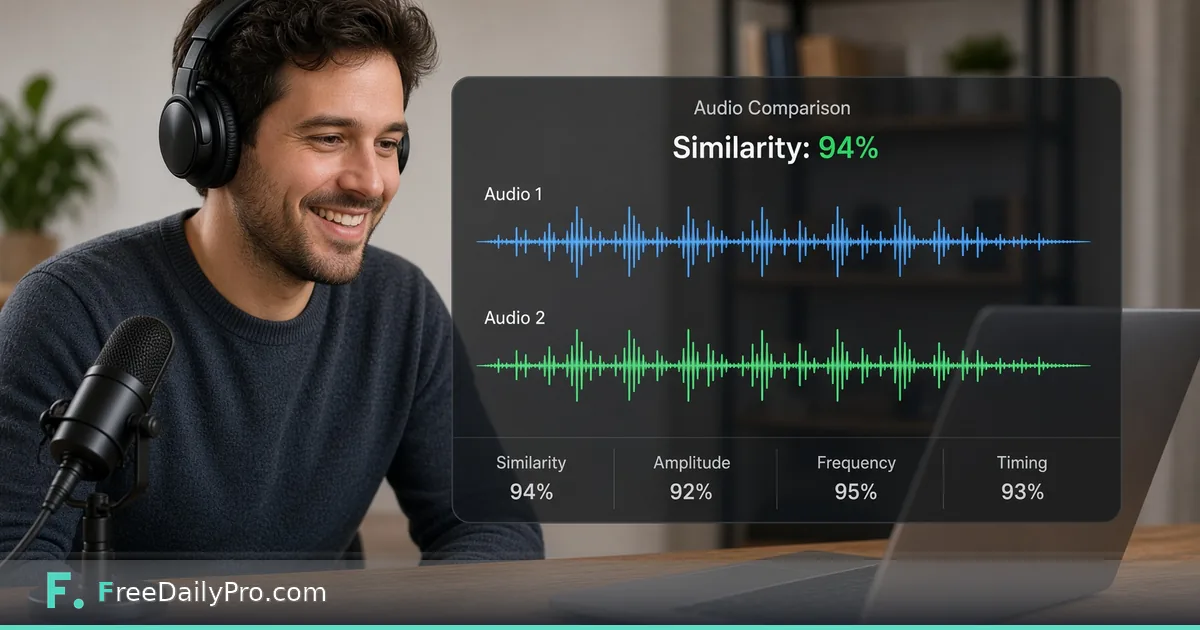
Both clips are decoded in your browser and split into the same number of equal time segments. For each segment the tool looks at frequency content and loudness pattern, then scores how closely the two files agree. Because the segments are proportional rather than fixed in length, a version that is a few seconds shorter or longer can still score reasonably high. Neither file leaves your machine during this process.
That design explains both its strengths and its blind spots. It is good at telling "same underlying recording" from "different recording." It is not a fingerprinting service, and it will not tell you which of two takes is better.
Prepare the clips so the score means something
A fair comparison starts with fair inputs.
- Level mismatch. If one file was mastered 6 dB hotter, run it through Audio Volume Normalizer first so loudness differences do not drag the score down.
- Steady hum or hiss. When one copy has air-conditioner rumble and the other does not, Background Noise Remover can reduce that steady noise before you compare the actual content.
- Different lead-in. If one clip starts with ten seconds of silence, trim it with Audio Trimmer so the segments line up.
- Different formats. MP3 versus WAV is fine to compare directly, but if you want to rule out codec effects, convert both to the same format with Audio Converter.
Skip all of this when your real question is "are these two exports exactly alike, noise and all?" In that case, any preprocessing hides the very thing you want to find.
Reading the percentage
Treat the number as a triage signal.
- A very high score (roughly the mid-90s and up) usually means the same performance with a light re-encode or tiny edit.
- A middle score often points to a different edit of the same material, such as a removed cough, a cut verse, or a different master.
- A low score normally means unrelated content.
Always confirm by listening at two or three spots, such as the opening, a loud passage, and the ending. Be careful with a surprise: two calm acoustic tracks in a similar key and tempo can score higher than you would expect even though they are different songs.
A worked example
Say you have mix_a.wav and mix_b.wav from a client. The comparer returns 71 percent. You normalize both, re-run, and the score moves to 88 percent. That tells you most of the gap was loudness, not content. You then spot-listen at the bridge and hear that mix_b has a shorter guitar solo. Now you have a specific question for the client instead of a vague feeling that the files differ.
Limits to respect
This is not forensic authentication, and a percentage is not proof for a dispute or a copyright claim. It does not identify speakers, and it cannot search a catalog for matches. It compares exactly the two files you provide, nothing more. For anything legal, use a purpose-built content-matching service.