
Turn a Bank Statement PDF Into a Checked CSV
Use Bank Statement to CSV to pull transactions from a text-based statement PDF into a checked table, then download CSV or Excel.
Dana Ruiz needs last month’s business checking activity in a spreadsheet for bookkeeping in Tampa, Florida—without retyping sixty lines. Bank Statement to CSV turns transactions in a text-based bank or card statement PDF into a checked table, then saves CSV or Excel. The PDF is read in the browser; rows clear when the page closes.
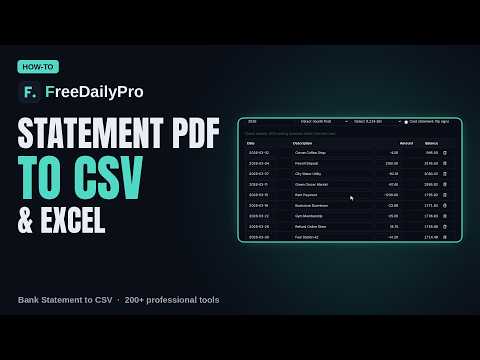
This guide covers one job only: get one statement month into a clean table with the on-page check passing.
Text PDF, not a photo
It cannot read scanned statements or photos. A scan is a picture with no text. Run OCR first (for example OCR Tool), then paste the text or use a text-based PDF export from your bank. It does not connect to your bank and does not categorize spending.
Related: CSV Converter, Expense Tracker. Category: file tools.
Worked example: March business checking, Tampa FL
- Source: bank PDF with selectable text (not a phone photo)
- Year: 2026 for dates printed without a year
- Card statement option: off (checking, not card)
- Done definition: on-page check passes, row count matches the statement’s transaction count, CSV opens in spreadsheet software with dates and amounts intact
Steps on Bank Statement to CSV
- Download the statement as a PDF from the bank with text selection working (try to highlight a date).
- If it is a scan only, OCR first and paste transaction lines instead of forcing a dead PDF.
- Open Bank Statement to CSV.
- Drop the PDF or paste transaction lines.
- Set the year if dates print without one.
- For credit card statements where purchases print as positive amounts, tick the box that flips signs so spending and credits land correctly.
- Review the table. If the check fails, fix highlighted rows first—wrong sign or a description that wrapped to the next line is the usual cause.
- Edit any bad cell; the check updates.
- Download CSV or Excel.
- Save as
Bank_YYYY-MM_checked.csvand import into bookkeeping—do not leave the only copy in a Downloads folder nameddownload (3).csv.
Why the check matters
The check is your safety net before tax or loan files. A failed check usually means one bad row, not a total failure. Fix the highlighted lines rather than retyping the whole month.
Common mistakes
- Feeding a photographed statement and expecting magic.
- Ignoring the year field when the PDF prints “03/12” without 2026.
- Leaving card sign flip off so purchases look like deposits.
- Exporting without fixing the failed check, then arguing with the accountant later.
- Assuming the tool categorizes “software” vs “travel”—it extracts, you categorize.
- Using statements larger than about 30 MB without expecting memory pressure.
Limits and good to know
- Statement read in the browser; not uploaded to FreeDailyPro; rows cleared on close.
- No bank login connection.
- Large files may be slower or hit browser memory.
- Among FreeDailyPro’s 300+ professional tools, premium applications and workflow products, this is the statement-to-table path for text PDFs.
- File-based tools use 10 trial usages per day unless you hold a day pass or monthly plan.
Tax and loan packets
Dana exports March–December as twelve CSVs, then concatenates in her spreadsheet with a source column. Loan officers often ask for “all pages”; keep the original PDFs next to the CSVs so the numbers stay auditable.
Card statements vs bank statements
Credit card PDFs often print purchases as positive amounts. Use the flip-signs option so your spreadsheet treats spend as outflow. Confirm a known purchase row after export before you import sixty lines into bookkeeping.
Multiple accounts
Run each account separately with a clear filename (Checking_2026-03.csv, Card_2026-03.csv). Merging first and labeling later is how rows lose their source.
Reconciling to the PDF total
After export, sum the amount column and compare to the statement’s period total or ending balance movement. A one-cent drift can mean a split row or a missed fee line. Fix in the tool when possible so the CSV remains the system of record for that month.
Privacy on shared computers
Because rows live in the tab, close the browser profile when you finish on a shared machine. Do not leave a statement PDF on the public Downloads folder of a coworking PC.
Fees and interest lines
Banks sometimes print interest or fee lines in a denser block. If those rows fail the check, correct them manually in the table before export so the CSV still balances to the PDF.
FAQ
Can it read a scan? No—OCR first, then paste text or use a text PDF.
Are statements uploaded? No. Browser-side read only.
What if the check fails? Fix highlighted rows (signs, wrapped descriptions), then re-check.
When the check does not pass
The check under the table compares the statement's opening balance, your rows and the closing balance. If the statement prints a running balance on each line, the tool tests every row against it and highlights the ones that do not follow. If it only has opening and closing figures, it reports how far the total sits above or below the closing balance.
Suppose a statement opens at 2,400.00 and closes at 2,118.50, so the rows should add up to minus 281.50. If the table shows a gap, look first at highlighted rows and at any amount outlined in amber, which means the sign was guessed from the description because no balance was available. Fix the cell, and the check updates as you type. The note about skipped lines matters too: a line that starts with a date but has no amount is left out, and a wrapped description is a common cause.
Two settings solve most oddities. If dates print without a year, type the year in the year box. If 03/01 should read as 3 January rather than 1 March, switch the date order to day first. Statements that write 1.234,56 need the European number style. A scan has no text layer, so the tool asks you to run it through OCR first.
Closing next step
Stop retyping statements. Open Bank Statement to CSV, drop a text PDF, clear the check, and download the file your bookkeeping already expects.
Need a multi-month merge pattern or card-statement sign guide next? https://www.freedailypro.com/contact.