
Extract the Audio Track From a Video to MP3
Use Extract Audio to save a video's soundtrack as MP3, WAV, M4A, OGG, or FLAC in your browser.
The interview is on camera; the podcast feed only wants sound. Sam Okonkwo, lance producer in Atlanta, needs the audio from a 42-minute guest video without shipping the whole file to a cloud editor. Extract Audio pulls the audio track to MP3, WAV, M4A, OGG, or FLAC (or copies the original audio untouched), optionally for a time range only—and runs in the browser so the video never leaves the device.
One job: upload, choose format and optional range, download clean audio, then trim or convert if the host needs a different delivery. For creators and lancers among FreeDailyPro's 300+ professional tools, premium applications and workflow products.
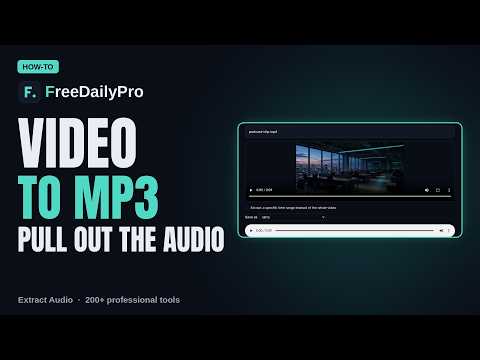
When extraction is enough
If the video audio is already clean, extract and publish. If levels jump or noise dominates, extract first, then use Audio Trimmer for cold open/end, and Audio Converter when a platform demands a specific container. Category: audio tools and related video tools for the source clip.
Worked example: guest episode from Zoom recording
- Source:
Guest_2026-10-18.mp4(42:10) - Need: MP3 for the podcast host, full talk minus the first 45s of setup
- Path: extract range 00:00:45–end as MP3, then a light trim if silence remains
Steps on Extract Audio
- Confirm you have rights to reuse the recording's audio.
- Open Extract Audio.
- Upload the video (large files may take longer locally—wait rather than refresh).
- Choose output format: MP3 for share size, WAV/FLAC when you will edit further.
- Optionally set a start/end time so you never export the dead setup.
- Run extract and download with a clear name (
Guest_2026-10-18_audio.mp3). - Play the whole file once before you schedule the episode.
- Archive the video master separately; the MP3 is a derivative, not the only copy.
Format picks that avoid rework
- MP3: distribution and review links
- WAV/FLAC: further noise cleanup or loudness work
- M4A/OGG: when a specific host or CMS prefers them
- Original untouched copy: when you do not want a re-encode
Common mistakes
- Extracting the entire pre-roll with ten minutes of "can you hear me."
- Re-encoding already-lossy audio five times across tools.
- Naming the file
audio.mp3and losing it among downloads. - Assuming extract fixes bad mic placement—it does not.
- Deleting the video master after one good MP3.
Limits and good to know
- Browser-side path: video stays on your device for this tool's design.
- Very large files need patience and memory; close other heavy tabs.
- Optional time range saves a later trim when you already know in/out.
- File tools share Professional Tools trial usage limits unless you hold a pass or plan.
- Extraction is not multi-track stem separation for music production.
Show-notes habit
While the extract runs, write three timestamps for the episode description. When the MP3 lands, those notes are ready and the publish checklist shrinks.
Rights and guest consent
Before extract-and-publish, confirm the guest agreed to podcast distribution, not only a private video call. Note the consent date in the project folder. If the video includes copyrighted hold music in the waiting room, trim that range out so the episode does not ship third-party audio.
Loudness and host specs
Many hosts want roughly consistent loudness. Extract to WAV if you will normalize later; deliver MP3 only after your loudness pass. If the host accepts raw MP3 for review, label it _review versus _master.
Time range discipline
Mark in/out while watching once: setup ends, goodbye starts. Enter those times in Extract Audio so you never export twenty minutes of silence and "one more thing" chatter you will delete later anyway.
Storage layout Sam uses
/episodes/2026-10-18-guest/
  video_master.mp4
  audio_extract.wav
  audio_master.mp3
  notes.md
Derivatives never overwrite masters.
When extract is not enough
Multi-mic stems, music beds, or heavy noise need a real editor after extract. Extract gets you the mono/stereo mix from the file; it does not invent a clean lav mic that was never recorded.
FAQ-style notes
Does the video leave my device? This tool is designed to run in the browser on your device—still use a machine you trust. Which format for Archive.org? Often prefer lossless masters; follow the archive's current guidance. Partial extract? Use the time range controls instead of a second tool when you already know times.
Platform delivery matrix
Some hosts want MP3 128–192 kbps mono or stereo; others take WAV. Read the host sheet once, extract to the master format that can cascade (often WAV), then make the delivery encode. Avoid extracting five times from video in different lossy settings.
Backup before long exports
Copy the video to an external drive before a long extract on a laptop that is low on disk. A full disk mid-export wastes the wait. Sam starts extracts plugged in on power, not on 8% battery, because browsers throttle background tabs when energy saver kicks in.
Chapter markers after extract
Once the MP3 exists, add chapter markers in your editor or host CMS using the timestamps you wrote during the watch-through. Extraction gets the file; chapters get the listener to the good parts without scrubbing blindly.
Output formats and range extraction
The Save as menu is wider than the title suggests: MP3, WAV (uncompressed), M4A (AAC), OGG, FLAC, or Original audio. Original copies the sound exactly as it sits in the video without re-encoding, which is instant and loses nothing. It only works when the codec has a plain file type, such as AAC to M4A or MP3 to MP3. When it cannot, the tool tells you and saves an MP3 instead.
You can also tick the range option and extract only part of the recording. Start and End accept 1:23, 83, or 1:23.5, so type them however is natural. Say a recorded interview runs 58 minutes and the usable conversation sits between 2:05 and 14:40. Enter those two times and the tool reports that it is extracting 12 minutes 35 seconds. The download is named after the video plus the range, for example interview_2m05s-14m40s.mp3, so clips from one recording never overwrite each other.
WAV files are large, so reserve that choice for editing, and use MP3 for sharing. If a clip needs more polish afterwards, the converter and trimmer linked earlier take over from here.
Closing
Pull the track with Extract Audio, listen once end-to-end, then deliver the format your host listed.
If you want a trim-and-convert path for a specific host, contact https://www.freedailypro.com/contact.